What to Expect with iPadOS 26: New Features
If you're looking to enhance your productivity with your iPad, iPadOS 26 is packed with exciting features designed specifically for that purpose. This latest update introduces significant enhancements in multitasking, app management, and note-taking, aiming to improve your overall user experience. With refined widgets and advanced tools, iPadOS 26 boosts efficiency and offers greater customization for your daily tasks.
What are the standout features of iPadOS 26?
iPadOS 26 brings several noteworthy updates, particularly in widget customization. You'll have greater flexibility in arranging your home screen with interactive widgets, allowing for quicker access to information and actions. For instance, you can resize widgets to fit your layout and stack them for a more streamlined appearance.
The enhanced note-taking capabilities are another highlight. The Notes app now includes tools for handwriting recognition and advanced text formatting. You can easily convert handwritten notes into text, making it simpler to organize your thoughts after jotting them down.
The new Quick Note feature allows for easy note creation from any app, enabling you to capture ideas without disrupting your workflow. This means you can take notes while browsing the web or working in another app, enhancing your creative process.
Additionally, iPadOS 26 introduces new productivity features such as Focus Filters, allowing you to customize notifications based on your activity. This feature helps you stay focused on your current task by filtering out distractions.
How does iPadOS 26 change multitasking on my device?
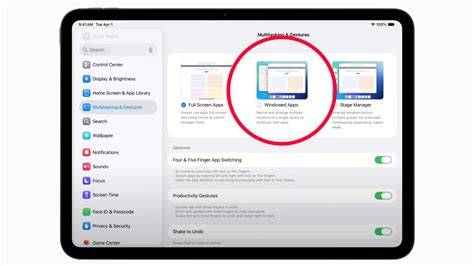
iPadOS 26 significantly improves multitasking, making it easier to work with multiple applications simultaneously. The updates to Split View and Slide Over features allow for more efficient app management. In Split View, you can adjust the divider between apps, giving you better control over how much screen space each app occupies. This is particularly useful for referencing documents while drafting emails or creating presentations.
The Slide Over feature has also been enhanced, enabling quick switching between apps without losing your place in the primary application. For example, if you're writing a report in Word while keeping a reference document open in Safari, you can easily slide between the two without interrupting your flow.
These multitasking options are powerful, but older iPad models might not support all features. It's important to check how these enhancements fit into your specific workflow.
Is my iPad compatible with iPadOS 26?
iPadOS 26 is compatible with a wide range of iPad models, ensuring that many users can take advantage of the new features. You can expect compatibility with iPad Pro models, iPad Air (3rd generation and later), iPad (5th generation and later), and iPad mini (5th generation and later).
If your iPad is older and not supported, you'll be unable to upgrade to iPadOS 26. However, you can still optimize your current setup by focusing on productivity tips and tools available for your version of iPadOS until it's time to upgrade your hardware.
What are the privacy and security improvements in iPadOS 26?
Privacy and security enhancements are a priority in iPadOS 26, providing you with more control over your data. One key update is the improved app tracking transparency, which requires apps to obtain your permission before tracking your activity across other apps and websites. This change allows you to make informed decisions about your privacy and limit data sharing.
Security settings have also been improved to better protect against unauthorized access. An updated security check feature lets you review and manage which apps have access to sensitive information, such as your location and contacts. This feature helps you quickly revoke permissions from apps you no longer trust.
While these improvements are beneficial, regularly updating your device is crucial for maintaining optimal security. Make sure to check for updates and review your privacy settings to keep your information secure.
How can I make the most of the new features in iPadOS 26?
To effectively utilize the new features in iPadOS 26, start by customizing your home screen with the new widgets. Experiment with various sizes and stacks to find a layout that suits your needs. This will enhance not only the aesthetics but also the accessibility of frequently used apps and information.
Leverage the enhanced note-taking features by practicing handwriting recognition and exploring the Quick Note function. You may find that integrating note-taking into your workflow becomes easier, especially during meetings or lectures.
Familiarize yourself with the updated Split View and Slide Over options for multitasking. Using them during your regular tasks can help streamline your process. Consider assigning specific apps to specific tasks for easier transitions.
Lastly, regularly review your privacy settings and app permissions to stay informed about your data sharing and ensure your information remains secure.
Conclusion
Begin by exploring the new widget options on your home screen to prioritize quick access to your most-used apps. Don't overlook the note-taking enhancements; they can transform how you capture and organize information. If some features don’t fit your workflow, focus on the multitasking capabilities, as they can significantly enhance your productivity. The updates aim to create a more efficient, organized, and secure experience on your iPad.
Frequently Asked Questions
What are the key features of iPadOS 26?
Key features include enhanced widgets, improved note-taking capabilities, and significant multitasking updates such as adjustable Split View and enhanced Slide Over options.
Which iPads will support iPadOS 26?
iPadOS 26 supports iPad Pro models, iPad Air (3rd generation and later), iPad (5th generation and later), and iPad mini (5th generation and later). Older models may not be compatible.
How do I improve my privacy on iPadOS 26?
You can improve your privacy by utilizing the new app tracking transparency feature, which requires apps to ask for permission before tracking your activity. Regularly review your privacy settings and app permissions as well.
Can I use the new features on older iPads?
Some features may not be available on older iPads that are not compatible with iPadOS 26. However, you can still optimize your current setup and explore available productivity tools for your version.
What should I do first after updating to iPadOS 26?
Start by customizing your home screen with the new widget options and experimenting with the note-taking enhancements. Familiarizing yourself with the multitasking features will also help you get the most out of the update.